
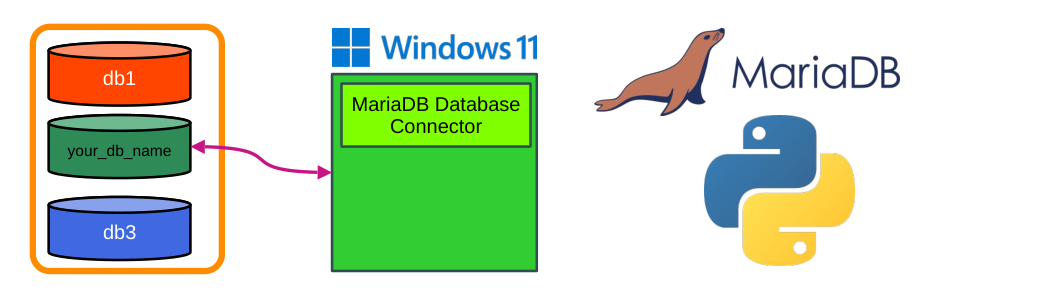
In this tutorial, we will learn to connect with the MariaDB Database Server running locally on our Windows 11 system and perform basic CRUD (Create, Read, Update, and Delete) operations on it. Here we will be using the MariaDB Connector/Python to connect with the server and interact with it.
The Tutorial is divided into two sections,
The first one involves basic database administration tasks like Installing the database, creating user ,assigning databases to specific users, creating a database etc .This section would allow a total novice to succesfully install and operate the MariaDB Server locally on their Windows 11 Machine.
Second section we learn to connect with the MariaDB Database running locally using the standard MariaDB Connector/Python .We will learn to create tables, insert data into the said tables, read and write records into the MariaDB database etc.We will be using a venv environment to locally install the MariaDB connector on Windows 11
Do check the Contents Section below ⬇️ for specific parts of the tutorial.
All codes are available on GitHub.
Looking for Tutorials on SQLite Database (serverless) and Python 3.x.x
Contents
- Source Codes
- What is MariaDB
- Basic MariaDB Database Administration
- Programming MariaDB Database in Python
- MariaDB Python Connector
- Installing MariaDB Connector/Python
- Connecting to the MariaDB Database using Python
- Creating a Table in MariaDB using Python
- Inserting a Row into MariaDB using Python
- Inserting Multiple Rows into MariaDB using Python
- Reading Rows from MariaDB using Python
- Updating a value in MariaDB using Python
- Deleting a row in MariaDB using Python
Source Codes

Download the Python MariaDB Database Connector Tutorial Source Codes as Zip file
Browse the MariaDB Connection GitHub Repo
Here we will be using VENV virtual environment to manage our packages.
If you are new to venv, Check our Python Venv Youtube Tutorial on Windows 11 here or here.
What is MariaDB

MariaDB is a community-developed fork of the MySQL relational database management system (RDBMS). It was created to ensure that the software would remain free and fully open-source under the GNU General Public License, particularly in response to concerns that arose following Oracle Corporation’s acquisition of MySQL.

MariaDB is designed for strong compatibility and aims to match MySQL’s APIs, commands, and overall behavior as closely as possible, making it a practical drop-in replacement in many environments.
In addition to maintaining compatibility, MariaDB introduces several advanced storage engines such as Aria, ColumnStore, and MyRocks, which enhance performance, support analytical workloads, and provide flexible storage options for modern applications.
Installing MariaDB Database on Windows 11

MariaDB is available for multiple platforms and OS ,You can download the latest Windows OS installer by going to the MariaDB website
MariaDB is available in two versions a Rolling Release and a LTS Version
You can then install it on Windows 11 by clicking the .msi package and follow the instructions.
We will also include a small crash course on creating and configuring a database on MariaDB below, before going for programming the MariaDB database in Python
Setting Root Password on MariaDB
Now you will be asked to set the root password for administrating the MariaDB installation as shown below. Give a strong password and store it some where safely.
You can also see the location of your Data Directory where MariaDB stores all its data.

Configuring the TCP port number of MariaDB
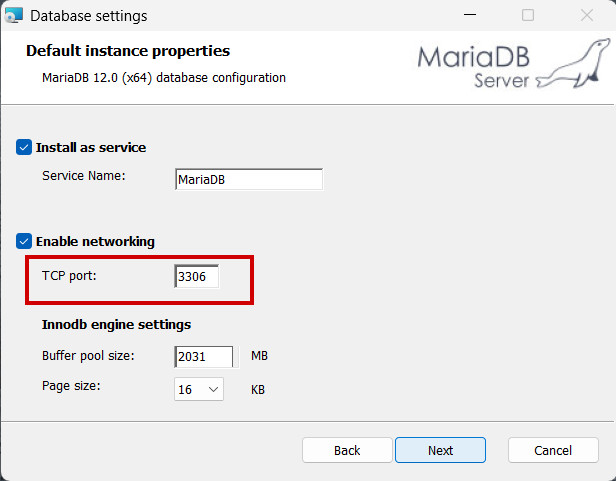
In the next step you can set the Service Name and the Port number used by the MariaDB to communicate between the server and the client( HeidiSQL or your python script).
Here the TCP port number for our MariaDB installation is 3306 .If you have any other service that uses the same TCP port number, you will have to change the port number in this section to stop conflict.
You can change the Port Number Later also by using HeidiSQL Administrator.
Please note that the latest version of the MariaDB RDMS on Windows 11 also installs HeidiSQL for connecting and administrating the databases using a GUI by default. You can find the HeidiSQL GUI administrator inside Start Menu -> All.

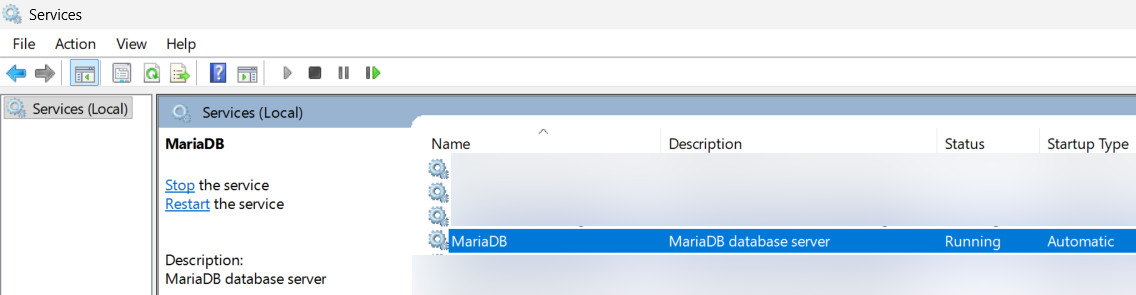
Once the installation is complete the MariaDB server will be active and will run as Windows Service.
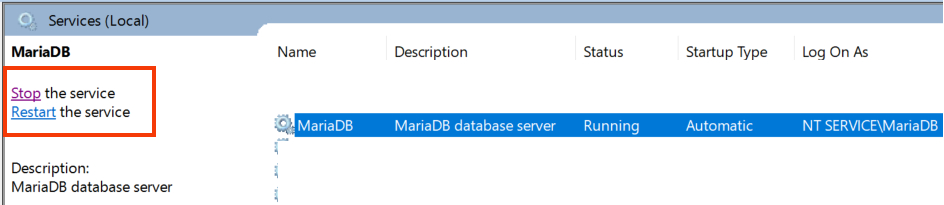
You can Stop and Start the MariaDB by going to Windows Services (Services.msc) , Selecting the MariaDB service and right clicking it .
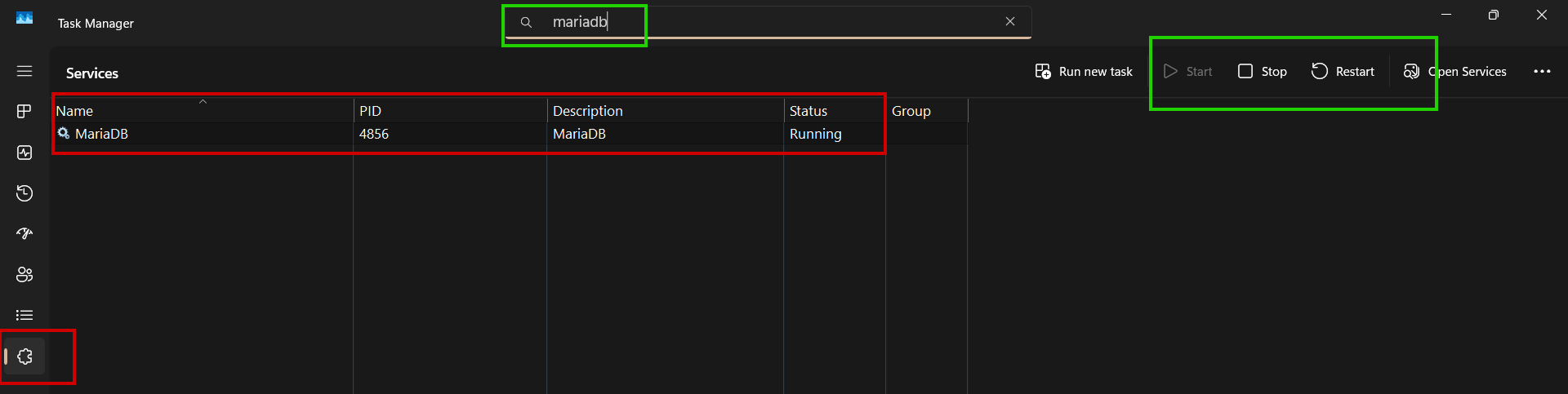
Same thing is also available from the Task Manager on its services tab, which is searchable too.
How MariaDB Server Communicates with Client
MariaDB is a Database Management system that can contain multiple databases created by multiple users. Our job is to connect with correct MariaDB database from our Python script using the correct privileges.
On Windows 11,
MariaDB Server runs as a Windows service that listens to the TCP port number 3306 by default.
The Client programs like HeidiSQL ,MySQL Client and our own Python Script can talk to the server process using this port number.
We should provide authentication information like Database Name, User Name ,Password etc to securely connect with the server.
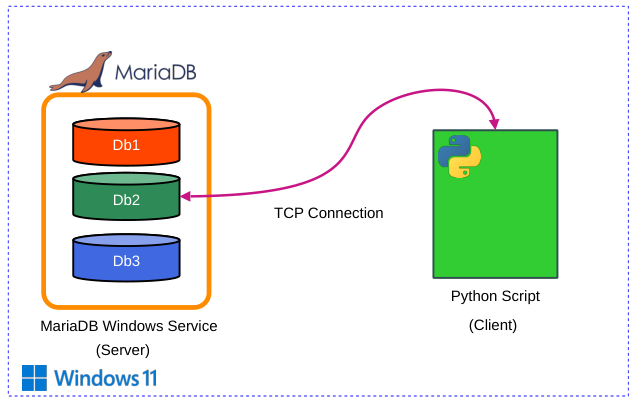
You can access the MariaDB server over a Network Connection from other computers too ,Here we will be running the client and the MariaDB server locally on our Windows 11 Machine.
MariaDB Server is called as mariadbd (MariaDB Daemon ),Modern Name or mysqld (MySQL Daemon) ,Legacy Name for Compatibility
MariaDB Client is called as mariadb (Modern Name ) or mysql (Legacy Name for Compatibility)
Logging in to MariaDB from Command Line or Power Shell
mariadb -u 'user-name' -por
mysql -u 'username' -p
Inside Windows 11 ,You can Find two Command line Clients as shown below for interacting with your Database.

Here Command Prompt (MariaDB 12.0 (x64)) can be used to login to any account (root or user) using standard commands.(mariadb -u 'user-name' -p)
while MySQL Client (MariaDB 12.0 (x64)) can be used to login to only the root account.
Creating a User Account in MariaDB
A MariaDB account is uniquely identified by both the Username and the Host it connects from
.'app_user'@'localhost' -> The user app_user can only connect from the same server where MariaDB is running, local install.
'remote_user'@'192.168.1.10' -> The user remote_user can only connect from the specific IP address 192.168.1.10.
'any_user'@'% '-> The user any_user can connect from any host (the % is a wildcard).
To create a user account ,You need to Log In as root user. You can do that by using the MySQL Client (MariaDB 12.0 (x64)) or by through the command line interface .
Issue the following command .
mariadb -u root -p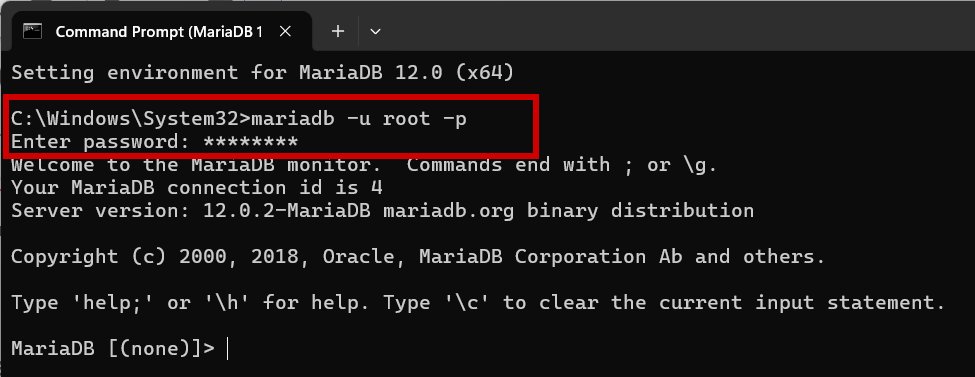
Once inside the MariaDB client ,You can create the user account by issuing the command CREATE USER as shown below.
CREATE USER 'username'@'host' IDENTIFIED BY 'password';username' → the new user’s name
'host' → where the user can connect from (localhost, %, or a specific IP)
'password' → the user’s password
Now we will be logging in from our local machine only ,So you can run
CREATE USER 'rahul'@'localhost' IDENTIFIED BY 'EY4u^?%<_VB2tfY2';You can run that

A new user account is created and username ('rahul'), hostname( 'localhost) and password is stored inside the Table mysql.user table. Your password ('EY4u^?%<_VB2tfY2') is hashed and stored in encrypted form.
You can check that information using
SELECT User, Host, authentication_string FROM mysql.user;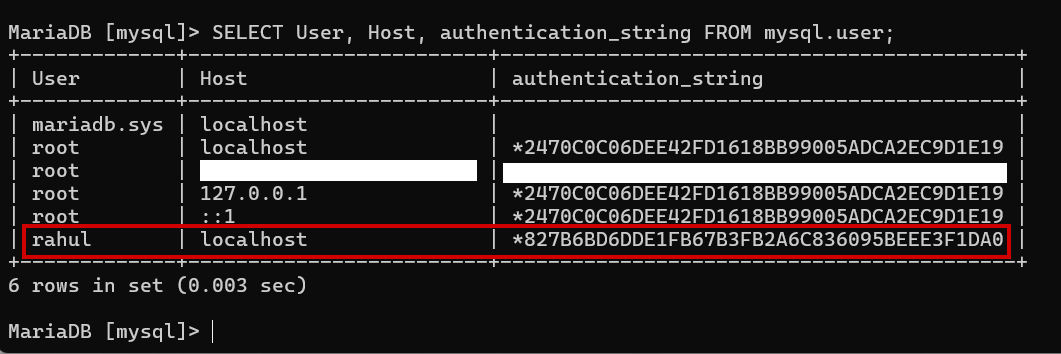
You can remove the user account using
DROP USER 'username'@'host';      -- deletes user safely
DROP USER IF EXISTS 'username'@'host';  -- safer version
Assigning the user a Database
Now that we have created the user (rahul@localhost) we should create a database and grant privileges to the user for controlling the database. We will call the database mariadb_testdb
CREATE DATABASE mariadb_testdb;
You can do that by using the GRANT SQL Command.
Now we will be using our database for development, So we will grant our user the ability to
CREATE - Create a Table inside the database
INSERT - Insert data into the Table
SELECT - Read Data from our Database
UPDATE - Update specific columns as per requirement
DELETE - Delete data
ALTER - Can add/drop columns, indexes, constraint in the table
DROP - Deletes the whole Table if needed
This will allow the user to perform full CRUD operations on the database
GRANT CREATE,INSERT,SELECT,UPDATE,DELETE,ALTER,DROP
ON  mariadb_testdb.*
TO 'rahul'@'localhost';
You can check the privileges for a specific users by
SHOW GRANTS FOR 'rahul'@'localhost';
Logging in to our Database
Now that you have created your database ,You can log out of the root account and log in to our database from a more restrictive user account.
mariadb -u rahul -p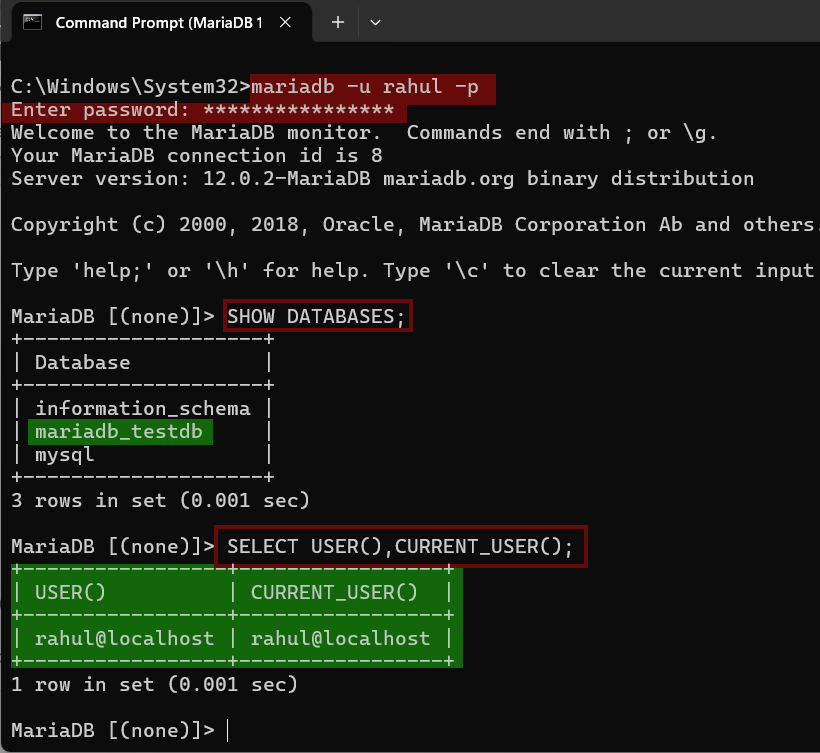
Now we will connect to the MariaDB database (mariadb_testdb) from our newly created user account (rahul@localhost) using Python MariaDB connector and perform database CRUD operations.
MariaDB Datatypes
Commonly used MariaDB datatypes are
INTEGER/INT - Integer values -> 4 Bytes -> Range -> -2,147,483,648 to 2,147,483,647
INTEGER UNSIGNED - Range ->0 to 4,294,967,295
FLOAT -> 4 Bytes- >
DOUBLE - >8 Bytes
DECIMAL -> For Money
VARCHAR(n) -> stores variable-length text. here n is the maximum length in characters
TEXT - >is used for large text blocks, bigger than VARCHAR can efficiently handle
TIME - > Stores time of day or time intervals, not full dates. Format: 'HH:MM:SS'. Can store intervals longer than 24 hours (unlike DATETIME).Eg '09:30:00'
DATETIME -> Stores date and time together: 'YYYY-MM-DD HH:MM:SS'.Not timezone-aware.Eg '2026-02-05 14:30:00'
TIMESTAMP -> Stores date and time: 'YYYY-MM-DD HH:MM:SS' .Timezone-aware: stored in UTC internally, converts automatically to the session timezone on retrieval
MariaDB Python Connector
MariaDB Connector/Python is a Python database driver that lets applications connect to MariaDB and MySQL databases. It follows the Python DB API 2.0 (PEP-249) standard and is implemented as a C extension. The connector uses the MariaDB Connector/C library to handle database communication, including connections, queries, and result processing.
Here we will install the MariaDB Connector/Python in our system to communicate with the Database and perform CRUD operations.
Installing MariaDB Connector/Python
To install the MariaDB Python Connector on Windows 11 ,We need to first create a Python Virtual Environment using VENV or other Tools (virtualenv), this helps to keep our code organized and prevents your system Python being cluttered with multiple libraries.
First Step is to make sure that Python is installed on your Windows 11 system. You can download the popular CPython interpreter from here.
If you are new to Python Virtual environments using VENV on Windows 11, Check out our Youtube Tutorial below
Now you can first create a virtual environment using venv.
python -m venv .venvAfter which you can activate the Virtual Environment
.\.venv\Scripts\activateIf you are getting an Error Message like ".venv\Scripts\Activate.ps1 cannot be loaded because running scripts is disabled on this system"

Change the Powershell execution policy by running the following command
Set-ExecutionPolicy -Scope Process -ExecutionPolicy RemoteSigned # will work only for the current session
After which you can install the Python MariaDB Database Connector using PIP after activating the virtual environment.
pip install mariadb
Make sure that the virtual environment is active before using PIP to install mariadb python connector.
Connecting to the MariaDB Database
To connect with a MariaDB server from a Python script, You need to send a set of parameters to the server over a TCP Connection.
The core connection parameters that are commonly required.
host – MariaDB server hostname or IP .For Example: "localhost" or "127.0.0.1"
port – TCP port MariaDB is listening on. Default: 3306
user – username ,(For eg rahul)
password – Password for that user,(For eg EY4u^?%<_VB2tfY2)
database (or db) – The schema you want to connect to,(Database name )
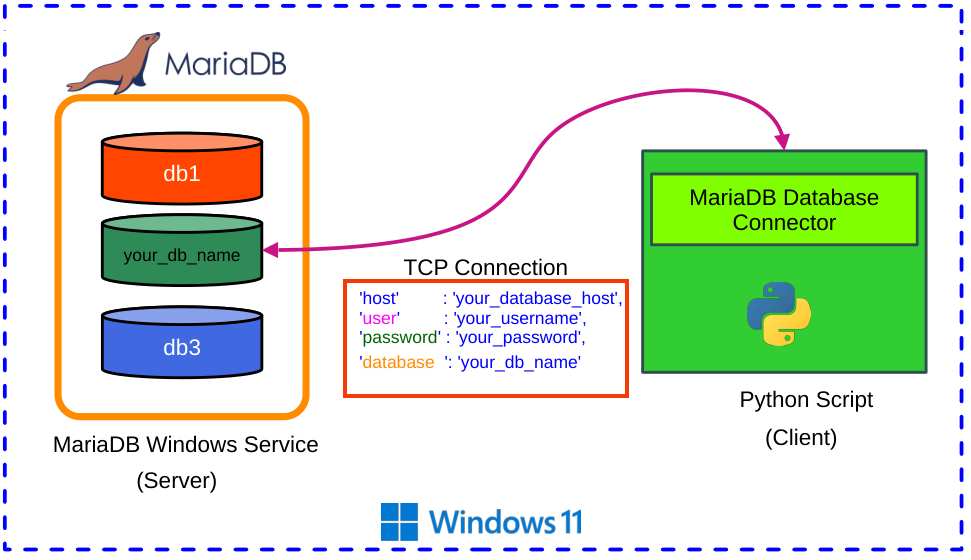
The TCP traffic between the server and your script is not encrypted. Here we are running the MariaDB server locally on our machine and the risks of a sniffing attack is quite minimal. If we are communicating with the server over a network ,it is recommended to use encryption like TLS.
Now we will connect with the MariaDB server,
Make sure that the MariaDB database is running on your Windows 11 System.
You can run this small script for connecting with the MariaDB server running locally, inside your virtual environment ,after activating it.
#mariadb-conn-simple.py
#create a simple connection to a  mariadb database

# Hard coding our credentials into the source code is not the best practice to follow.
# This is just a tutorial and the credentials are just for a throw away database


import mariadb
import sys

try:
   conn = mariadb.connect(
                           user="rahul",
                           password="EY4u^?%<_VB2tfY2",
                           host="localhost",
                           port=3306,
                           database="mariadb_testdb"
                         )

except mariadb.Error as e:
   print(f"Error connecting to MariaDB: {e}")
   sys.exit(1) # telling the system program ended in an error
Here the user rahul@localhost will talk to a database named mariadb_testdb inside the MariaDB Database Management System server running on TCP port 3306.
Here
sys.exit(1) stops the program immediately and tell the OS that the program ended in an error.
If sys.exit(0) program ended normally.
On running this code if no error is raised it is considered successful as shown below.

If the server is not running you will get an error like this .

You can test that by going to services.msc and disabling the server.
Please note that we are hard coding our credentials into the source code which is not the best practice to follow. This is just a tutorial and the credentials are just for a throw away database
Creating a Table in MariaDB using Python
Now that we have successfully established connection with MariaDB database, We will start to run SQL commands on the MariaDB database using a cursor object. As the first part of our CRUD operations we will create a Table inside our database.
Please note that most databases don't have the CREATE Privilege granted to it by the admin, We have explicitly granted the CREATE privilege during creation of our database 'mariadb_testdb'.
We will now create a table called transaction_history inside our database.
Now there are two ways to create a Table inside the MariaDB database
Using SQL Commands
Using GUI Table Builders like HeidiSQL or DBeaver. HeidiSQL comes pre bundled with the MariaDB database.
Here we will use the below SQL Commands to Create a Table.
CREATE TABLE IF NOT EXISTS transaction_history(  id INTEGER PRIMARY KEY NOT NULL AUTO_INCREMENT,
                                                 cust_name VARCHAR (255),
                                                 cust_age INTEGER ,
                                                 cust_email VARCHAR (255),
                                                 total_bill DECIMAL(10,2),
                                                 time_of_pay TIMESTAMP)
The IF NOT EXISTS clause ensures the command is only executed if the table is missing; if the table already exists, the database simply skips the operation instead of returning an error.
You can then put it inside a Python script and run it .
# connect to mariadb and create a table inside the MariaDB database using sql commands using Python
# Hard coding our credentials into the source code is not the best practice to follow.
# (c) www.xanthium.in 2026
#sql query to create table called transaction_history
create_table_sql_query = '''
CREATE TABLE IF NOT EXISTS transaction_history(  id INTEGER PRIMARY KEY NOT NULL AUTO_INCREMENT,
                                                cust_name VARCHAR (255),
                                                cust_age INTEGER ,
                                                cust_email VARCHAR (255),
                                                total_bill DECIMAL(10,2),
                                                time_of_pay TIMESTAMP)
'''
import mariadb #import mariadb connector for Python
import sys
#Connect with the Server
try:
  conn = mariadb.connect(
                          user="rahul",
                          password="EY4u^?%<_VB2tfY2",
                          host="localhost",
                          port=3306,
                          database="mariadb_testdb"
                        )

except mariadb.Error as e:
  print(f"Error connecting to MariaDB: {e}")
  sys.exit(1) # telling the system program ended in an error

cursor = conn.cursor() #create a cursor object
try:
  cursor.execute(create_table_sql_query) #execute the sql query
  conn.commit() #commit the changes to the db
  print("table created succesfully")
except mariadb.Error as e:
  print(f"Error in creating database :{e}")
finally:
  conn.close() #close the connection
After the connection to the database is successful, we use the connection object (conn) to create a cursor object
cursor = conn.cursor() #create a cursor objectThe cursor object is like a pointer that lets you send SQL commands to the database,fetch results from queries,move through rows of returned data etc.
we then use the execute() method of the cursor object to run SQL queries.
cursor.execute(create_table_sql_query) #execute the sql query
Make sure that Python VENV virtual Environment is active .

To make sure that the table is created you can query the MariaDB metadata (the information_schema) to see if the table exists. This is the best way to confirm it programmatically within your script.
or you can use the built in HeidiSQL GUI to see whether the table is created or not.

Adding Data into MariaDB using Python
Now we will populate our table( transaction_history ) inside the MariaDB database (mariadb_testdb) with some real values using a Python Script.
We will use the INSERT SQL query to add data into the Table.
Here is the syntax of the INSERT SQL query
INSERT INTO your_table_name (your_actual_column_name1,
                             your_actual_column_name2
                             your_actual_column_name3
                             )
VALUES (?,?,?)
here ? are place holders for the values that has to be written to the database. ? will be replaced by the Python methods with actual values.
This done to prevent SQL injection attacks.
Now we have the following columns in our database table and we will insert data into it.

Please make sure that you use the exact column names in the SQL query.
Here is the Complete Python code to INSERT data into MariaDB database
# Insert data to mariadb database Table.
# Hard coding our credentials into the source code is not the best practice to follow.
# (c) www.xanthium.in 2026

import mariadb #import mariadb connector for Python
import sys
import datetime

# data to be inserted into transaction_history table
# make sure that table exists in the first place
customer_name  = "Steve Harrington"
customer_age   = 28
customer_email = "steveharrington@mail.com"
customer_bill  = 1289.56

#column names should be exactly similar to db coloumn names, inside the SQL query
sql_query_insert_data = '''
INSERT INTO transaction_history (cust_name,
                                 cust_age,
                                 cust_email,
                                 total_bill,
                                 time_of_pay)
VALUES (?,?,?,?,?)
'''

#Connect with the Server
try:
  conn = mariadb.connect(
                          user="rahul",
                          password="EY4u^?%<_VB2tfY2",
                          host="localhost",
                          port=3306,
                          database="mariadb_testdb"
                        )

except mariadb.Error as e:
  print(f"Error connecting to MariaDB: {e}")
  sys.exit(1) # telling the system program ended in an error

cursor = conn.cursor() #create a cursor object
try:
    timestamp = datetime.datetime.now()
    print(timestamp)
    cursor.execute(sql_query_insert_data,
                   (customer_name,
                       customer_age,
                       customer_email,
                       customer_bill,
                       timestamp
                       )
                   )
    conn.commit() #commit the changes to the db

except mariadb.Error as e:
  print(f"Error in inserting data to the database :{e}")
finally:
    conn.close() #close the connection
The data to be inserted are kept in variable
#data we want to write to the database.
customer_name  = "Steve Harrington"
customer_age   = 28
customer_email = "steveharrington@mail.com"
customer_bill  = 1289.56
We create an SQL query to do the data insertion and assign it to some variable.
#column names should be exactly similar to db coloumn names, inside the SQL query
sql_query_insert_data = '''
INSERT INTO transaction_history (cust_name,
                                 cust_age,
                                 cust_email,
                                 total_bill,
                                 time_of_pay)
VALUES (?,?,?,?,?)
'''
Here the ? will be replaced by the actual data.
Open the connection to our database and get the cursor object.
Run the execute method of the cursor object with your SQL Query and the variables to be updated.
#writing data into the MariaDB database.

cursor.execute(
               sql_query_insert_data,
                    (customer_name,
                     customer_age,
                     customer_email,
                     customer_bill,
                     timestamp
                     )
                   )
? marks will be automatically replaced by data in the variables by the cursor.execute() function.
Make sure that data is entered in the correct order as per the column names in the SQL query.
On running the code ,The data will be updated in your database table as shown below.

You can check your data in the database by using HeidiSQL GUI Client.

Inserting Multiple Records into MariaDB using Python
Now here we will insert multiple records/rows into our MariaDB database.
To do that we will be using the executemany() method of the cursor object
First we create a List of tuples of values we plan to insert into our database.
We then provide the SQL query and the List of Tuples to the executemany() method of the cursor object
#list of tuples,  similar to the database coloumns
customers = [
   ("Liam Henderson", 28, "liam.h@example.com", 145.50, "2026-02-06 09:15:22"),
   ("Sophia Martinez", 34, "smartinez89@testmail.com", 82.25, "2026-02-06 10:05:45"),
   ("Marcus Chen", 42, "mchen_dev@provider.net", 310.00, "2026-02-06 10:45:10"), ]

#Sql Query
#column names should be exactly similar to db coloumn names, inside the SQL query
sql_query_insert_data = '''
INSERT INTO transaction_history (cust_name,
                                 cust_age,
                                 cust_email,
                                 total_bill,
                                 time_of_pay)
VALUES (?,?,?,?,?)
'''
#Inserting Multiple rows
cursor.executemany(sql_query_insert_data,customers) #executemany() returns a none
Here cursor.executemany() returns a none .
To get the number of Rows changed we should use the rowcount property of the cursor object.
print(f"Rows Changed = {cursor.rowcount}") #to get the number of rows changed, use cursor.rowcount
Here is the full code for inserting multiple rows into a mariadb database using Python
# Insert Multiple Records /Rows of data into the mariadb database Table.
# (c) www.xanthium.in 2026

import mariadb #import mariadb connector for Python
import sys
import datetime

# data to be inserted into transaction_history table
# make sure that table exists in the first place
# Data formatted for cur.executemany(sql, customers)
customers = [
   ("Liam Henderson", 28, "liam.h@example.com", 145.50, "2026-02-06 09:15:22"),
   ("Sophia Martinez", 34, "smartinez89@testmail.com", 82.25, "2026-02-06 10:05:45"),
   ("Marcus Chen", 42, "mchen_dev@provider.net", 310.00, "2026-02-06 10:45:10"),
   ("Elena Rodriguez", 23, "elena.rod@example.org", 12.99, "2026-02-06 11:02:33"),
   ("Julian Vane", 56, "jvane56@webmail.com", 540.75, "2026-02-06 11:15:00"),
   ("Aaliyah Smith", 31, "aaliyah.s@example.com", 67.40, "2026-02-06 11:20:12"),
   ("Oliver Quinn", 29, "ollie.q@fastmail.com", 125.00, "2026-02-06 11:23:35"),
   ("Isabella Ross", 45, "i.ross@corporate.com", 215.10, "2026-02-06 11:35:50"),
   ("Ethan Wright", 38, "wright.ethan@test.io", 45.00, "2026-02-06 11:45:18"),
   ("Chloe Tanaka", 27, "ctanaka@example.jp", 189.95, "2026-02-06 11:58:05")
]

#column names should be exactly similar to db coloumn names, inside the SQL query
sql_query_insert_data = '''
INSERT INTO transaction_history (cust_name,
                                 cust_age,
                                 cust_email,
                                 total_bill,
                                 time_of_pay)
VALUES (?,?,?,?,?)
'''

#Connect with the Server
try:
  conn = mariadb.connect(
                          user="rahul",
                          password="EY4u^?%<_VB2tfY2",
                          host="localhost",
                          port=3306,
                          database="mariadb_testdb"
                        )

except mariadb.Error as e:
  print(f"Error connecting to MariaDB: {e}")
  sys.exit(1) # telling the system program ended in an error

cursor = conn.cursor() #create a cursor object
try:

    cursor.executemany(sql_query_insert_data,customers) #executemany() returns a none
    print(f"Rows Changed = {cursor.rowcount}")                #to get the number of rows changed, use cursor.rowcount
    print(f"ID of the last inserted row {cursor.lastrowid}")  #ID of the last inserted row

    conn.commit() #commit the changes to the db

except mariadb.Error as e:
  print(f"Error in inserting data to the database :{e}")
finally:
    conn.close() #close the connection
On running it .

Reading Data from MariaDB using Python
To Read a row or multiple rows from our MariaDB database ,We are going to use the following options provided by our cursor object. Here we are doing the Read part of the database CRUD ops.
fetchall() -> Read the whole database rows in one go.
fetchone() -> When you expect exactly one row (like a user lookup by ID). A single tuple/dict.
fetchmany(size) -> For paginating data (e.g., "Give me 50 rows at a time"). A list of tuples/dicts.
fetchall()
We will start with the simplest of the Read operations ,that is the fetchall() method .This method is part of the cursor object and fetches the entire database and load it into the memory.
This will be fine for a small database with 100's of entries but it could exhaust your memory if you load an entire database with billions of rows into your computers memory.
fetchall() will return a list of Tuples or dictionaries if configured.
cursor.execute(sql_query_read_all)  # execute SELECT * FROM transaction_history
entire_table = cursor.fetchall()    # read the entire table
Here is the code for reading the entire database rows using fetchall().Our database has only 10 rows so this is ok.
# Read the data from the entire table
# (c) www.xanthium.in 2026
import mariadb #import mariadb connector for Python
import sys

sql_query_read_all = "SELECT * FROM transaction_history"
#Connect with the Server
try:
 conn = mariadb.connect(
                         user="rahul",
                         password="EY4u^?%<_VB2tfY2",
                         host="localhost",
                         port=3306,
                         database="mariadb_testdb"
                       )

except mariadb.Error as e:
 print(f"Error connecting to MariaDB: {e}")
 sys.exit(1) # telling the system program ended in an error

cursor = conn.cursor() #create a cursor object

try:
   cursor.execute(sql_query_read_all) #execute SELECT * FROM transaction_history
   entire_table = cursor.fetchall()   #read the entire table


   for row in entire_table:
     print(row)

except mariadb.Error as e:
 print(f"Error in inserting data to the database :{e}")
finally:
   conn.close() #close the connection
On running this ,You will get the following output.

fetchone()
fetchone() method is used when you know the result of your executed SQL query is a single line.
While fetchall() grabs the entire database, fetchone() will retrieve exactly one row at a time. It is the most memory-efficient way to handle database results.
If you have a table with 10 million rows, fetchall() would likely crash your script. fetchone() allows you to process each row, discard it, and move to the next without the memory footprint growing
For eg if the SQL query is some thing like
SELECT * FROM transaction_history WHERE id = 5 The result will be a single row. To get such results you can use fetchone().
#Partial Python Code,full code on github
sql_query_read_one = '''SELECT * FROM transaction_history WHERE id = 5 '''

#connect with database code here

#reading a line code
try:
   cursor.execute(sql_query_read_one) #execute SELECT * FROM transaction_history WHERE id =5
   just_single_row = cursor.fetchone()   #read the entire table

   print(just_single_row)
So this will return a single row as shown below.

fetchmany(n)
Think of fetchmany(size=n) as the middle ground between the "one-at-a-time" approach of fetchone() and the "everything-at-once" approach of fetchall(). It allows you to grab a specific chunk of rows.
When you call fetchmany(n), the cursor retrieves the next n rows from the result set and returns them as a list of tuples. If there are fewer than n rows remaining, it simply returns whatever is left.
cursor.execute("SELECT * FROM transaction_history")

page= cursor.fetchmany(5)
Updating a value in MariaDB
Updating a value in MariaDB database is basically running the UPDATE SQL command using the execute() method of the cursor object.
UPDATE table_name
SET column1 = 'new_value', column2 = 'another_value'
WHERE unique_id = 1;
Always use a WHERE clause. If you omit it, you will update every single row in your table.
So in our case,
UPDATE transaction_history
SET cust_name = "Steve"
WHERE id = 1;
Now just use the execute() method of the cursor object to run it on the server.
Deleting a Row in MariaDB
To remove one or more specific rows in MariaDB use the following SQL command.
DELETE FROM table_name
WHERE condition;
So
DELETE FROM transaction_history
WHERE id =1;
Now you can run that with the execute method of the cursor object.
If you want to delete every single row in a table and reset the auto-increment counters (starting IDs back at 1), use TRUNCATE. It is much faster than DELETE because it doesn't log individual row removals.
- Log in to post comments